
the.ocean
návod
management summary
filmy https://jellyfin.media.ocean/
požadavky na filmy / chyby filmů https://request.media.ocean/
správa profilu / hesla atp. https://id.cqre.net/
nové fetaures https://features.ocean/
hlášení bugů https://issues.ocean/
diskuze o systému / fórum https://cafe.ocean/
e-mail https://mail.postblue.cz/
certifikát https://rootca.cqre.net/
trezor hesel https://vault.cqre.net/
· Všude se přihlašovat přes CQRE ID / Zitadel;
· V consoli Zitadel/id.cqre mít nastavený passwordless přístup;
· Přihlašování do Jellyfin lze ještě snadněji udělat z jednoho zařízení na druhé přes Quick connect (typicky přihlásit TV pomocí mobilu - Settings / Quick Connect)
· Na VPN (Tailscale) ideálně nikdy nesahat a nechat běžet, v případě nutnosti lze jednoduše vypnout pomocí přepínače, není nutno odhlašovat nebo něco podobného
· Pokud na zařízení nelze instalovat certifikát (typicky TV), nutno přistupovat přes http (bez "s")
Zitadel + Tailscale / Headscale Onboarding Guide
This guide walks a new user through joining the Ocean network using Zitadel for identity and Tailscale (backed by Headscale / Headplane) for secure network access.
You will receive a username and a temporary password from the administrator. Follow the steps carefully for your device.
1. What You Need Before You Start
- A device running Windows, macOS, iOS, or Android
- Internet connection
- Username and temporary password provided by the administrator
You do not need any networking knowledge. This process is safe and reversible.
2. Account Activation (Zitadel)
Before installing Tailscale, you must activate your account.
-
Open a browser and go to: https://id.cqre.net
-
Log in using:
- Username (provided by admin)
- Temporary password (provided by admin)
-
You will be prompted to:
- Set a new personal password
- (Optionally) enroll a second factor (2FA) if required
Once completed, your identity is active.
You can close the browser after this step.
3. Install Tailscale
Tailscale creates a secure, encrypted connection to the Ocean network.
Download Links
- Windows / macOS: https://tailscale.com/download
- iOS (iPhone / iPad): App Store → Tailscale
- Android: Google Play → Tailscale
Install the app as you would any other software.
4. Log In to Tailscale (Important Platform Differences)
The Ocean network uses a custom Tailscale server (Headscale) at https://vpn.cqre.net.
⚠️ Important: On macOS, iOS, and Android, the default browser-based login flow must be interrupted. This is normal.
macOS / iOS / Android
-
Open Tailscale
-
Tap or click Log in
-
A browser window opens asking you to sign in to Tailscale.com
-
Close the browser window (do not log in)
-
Return to the Tailscale app
-
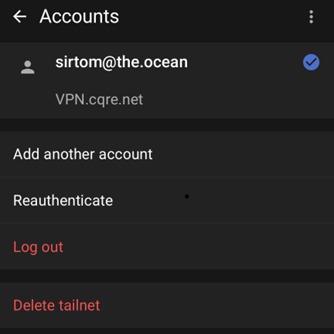
Select Use a custom server / Add custom coordination server
o Android Detail – Settings / Accounts / ... / Use an alternate server
-
Enter the server URL exactly: https://vpn.cqre.net
-
The browser opens again, this time redirecting to Zitadel
-
Log in using:
- Your Zitadel username
- Your personal password

After successful login, Tailscale connects automatically.
Windows
On Windows, logging in to a custom Headscale server requires using the command line.
- Open Tailscale once, then close the Tailscale window completely
- Open Command Prompt or PowerShell
- Run the following command exactly:
tailscale login --login-server https://vpn.cqre.net
-
A browser window opens showing a device code
-
Confirm the device code and log in via Zitadel using:
- Your Zitadel username
- Your personal password
-
After successful authentication, return to the Tailscale app
Google TV
Install Tailscale app from App store
Settings / Accounts / ... / Use an alternate server

Enter http://100.110.58.85:8096
⚠️ Important: you can´t use https since you are not able to install certificate on TV device, so please use http only.
Tailscale will now show the device as connected.
Apple TV
Install Tailscale app from App store
Connect, next use auth key, then use a custom coordination server.
Enter http://100.110.58.85:8096 to custom coordination server.
⚠️ Important: you can´t use https since you are not able to install certificate on TV device, so please use http only.
Enter auth key provided by your admin
Click connect.
You may see a message like “Connected” or “VPN enabled”.
5. Platform-Specific Notes
Windows
- You may be asked to approve a network adapter or VPN driver
- Accept all system prompts
- Tailscale runs in the system tray after installation
macOS
- macOS will ask for permission to add a VPN configuration
- Approve the request
- Tailscale icon appears in the menu bar
iOS (iPhone / iPad)
- iOS will ask to add VPN configurations
- Face ID / Touch ID may be required
- Tailscale reconnects automatically in the background
Android
- Android will ask for VPN permission
- Always allow Tailscale when prompted
- Battery optimization may need to be disabled for reliability
6. Certificates
Download root certificate from https://rootca.cqre.net/
⚠️ Important: Instal it to root!
Windows
– you need to manually select location

Android
Go to settings search for „Install certificate“, select CA Certificate / CA certificate / Install anyway / select file from downloads

TV
You are not able to install certificate on TV
7. Verifying Connection
Once connected:
- You can access internal services (websites ending in
.oceanor similar) - Some services may require you to log in again using Zitadel
If something works only inside the network, that is expected behavior.
8. Logging Out or Disconnecting
- To temporarily disconnect: open Tailscale and toggle Off
- To log out completely: open Tailscale → Account → Log out
You can reconnect anytime by logging in again.
9. Common Issues
Browser does not open automatically
- Copy the login URL shown in Tailscale and open it manually
Login works but no access
- Wait 1–2 minutes (access rules may still be propagating)
Still not working
-
Contact the administrator and mention:
- Your username
- Your device and operating system
10. Security Notes
- Never share your password
- The administrator will never ask for your password
- If you lose your device, report it immediately
Welcome aboard 🌊 You are now part of the Ocean network.
Profile
Central identity / account management.
You already have your account – see onboarding phase, you can find it here https://id.cqre.net/
Again you can use it as a web app on mobile and desktop.
You can add profile picture, name etc. to your profile.
You can also manage passwords and other methods. Creating password less access is highly recommended. Create it on mobile for universal use and on desktop if you are using it.
You can also add 2FA method such as Authentication application which is recommended.
Video
Jellyfin
Jellyfin is application for video playback, similar to Netflix etc.
Install application from app store or via https://jellyfin.org/downloads/
There is a desktop application for Win/iOS, there is one for mobile platforms and for TV systems as well.
Server address: https://jellyfin.media.ocean
⚠️ Important: you can´t use https since you are not able to install certificate on TV device, so please use http://jellyfin.media.ocean
You can use function “Quick Connect” to connect other devices, once you are logged in one device. Typically connect TV using phone to avoid typing on TV. You will find it in Settings menu.
⚠️ Important: in case of issues with first login to app, login first via browser (https://jellyfin.media.ocean) and then use Quick connect function.
Jellyseerr
Jellyseerr is application for requesting new content to Jellyfin.
Installation
Go to https://request.media.ocean/
On both desktop and phone, you can install web applications and use them as standard applications.
Desktop
Android
Click three dots / add to home screen / install app
Requesting media
From app or web you can request content to be added to Jellyfin. Clickin on your account picture you can see your requests quota which is valid for 7 days.
When requesting series, pay attention to which season you are requesting. One season = one request. Content already in database can’t be downloaded and is marked by green icon as “available”
With series you can also see marks as partially available.
In menu Requests you can see all requests from all users with status (Requested, pending or already available)
Troubles with media
When experiencing troubles with specific movies (low quality, missing parts, wrong language etc.). please lookup the movie in Jellyseerr and use button Report an issue. Overview of all reported issues is in menu Issues.